How to Connect Your WhatsApp to a Bulk Sender (No API Needed)
Connecting WhatsApp to a bulk sender takes one QR scan — the same mechanism as WhatsApp Web. What the pairing actually does, what it does not need, and how to keep the link stable.
Quick answer
You connect WhatsApp to a QR-based bulk sender exactly the way you connect WhatsApp Web: open the tool's dashboard, open WhatsApp on your phone, go to Linked Devices, and scan the QR code. The pairing takes about ten seconds, needs no API application, no business verification and no template approval, and can be revoked from your phone at any time.
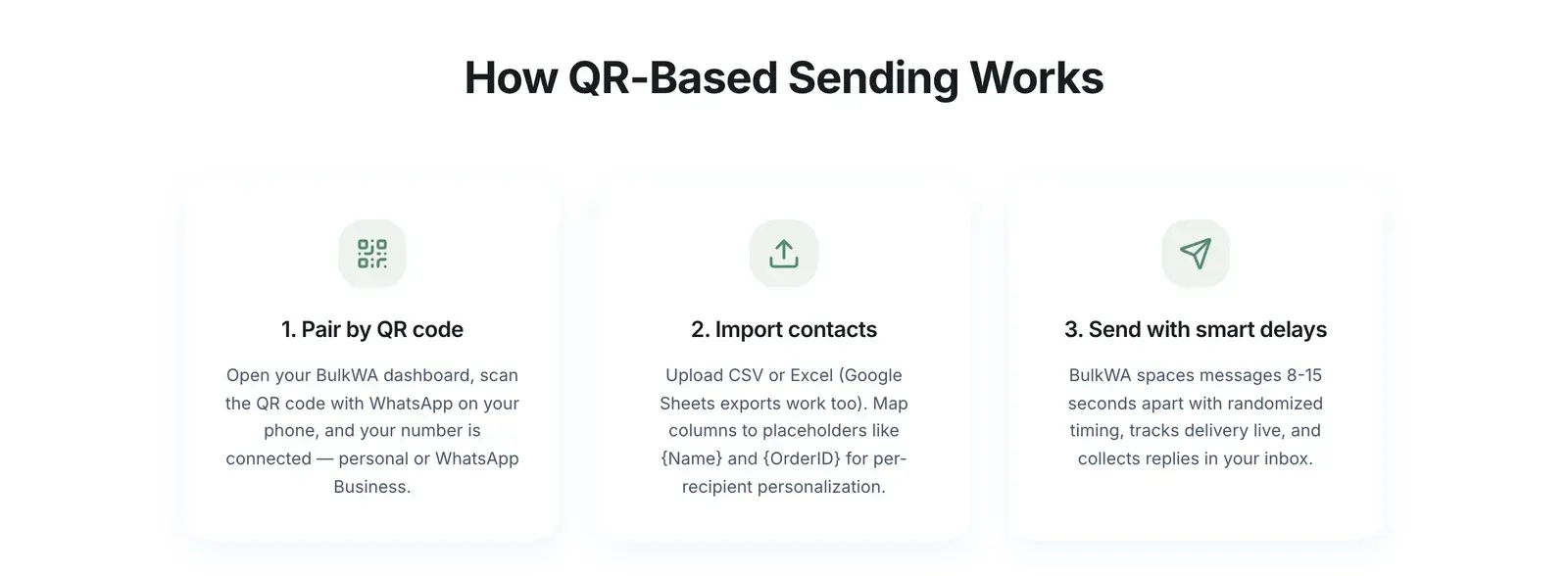
If you have ever used WhatsApp on a laptop, you already know how to connect WhatsApp to a bulk sender. It is the same scan, the same Linked Devices screen, and the same ten seconds. The reason this question gets asked so often is that people expect it to be harder — they assume "bulk" must mean applications, verification and a developer somewhere.
For the official Business API, it does. For a QR-based sender, it does not. Here is what actually happens, and what to watch for.
The Connection Itself
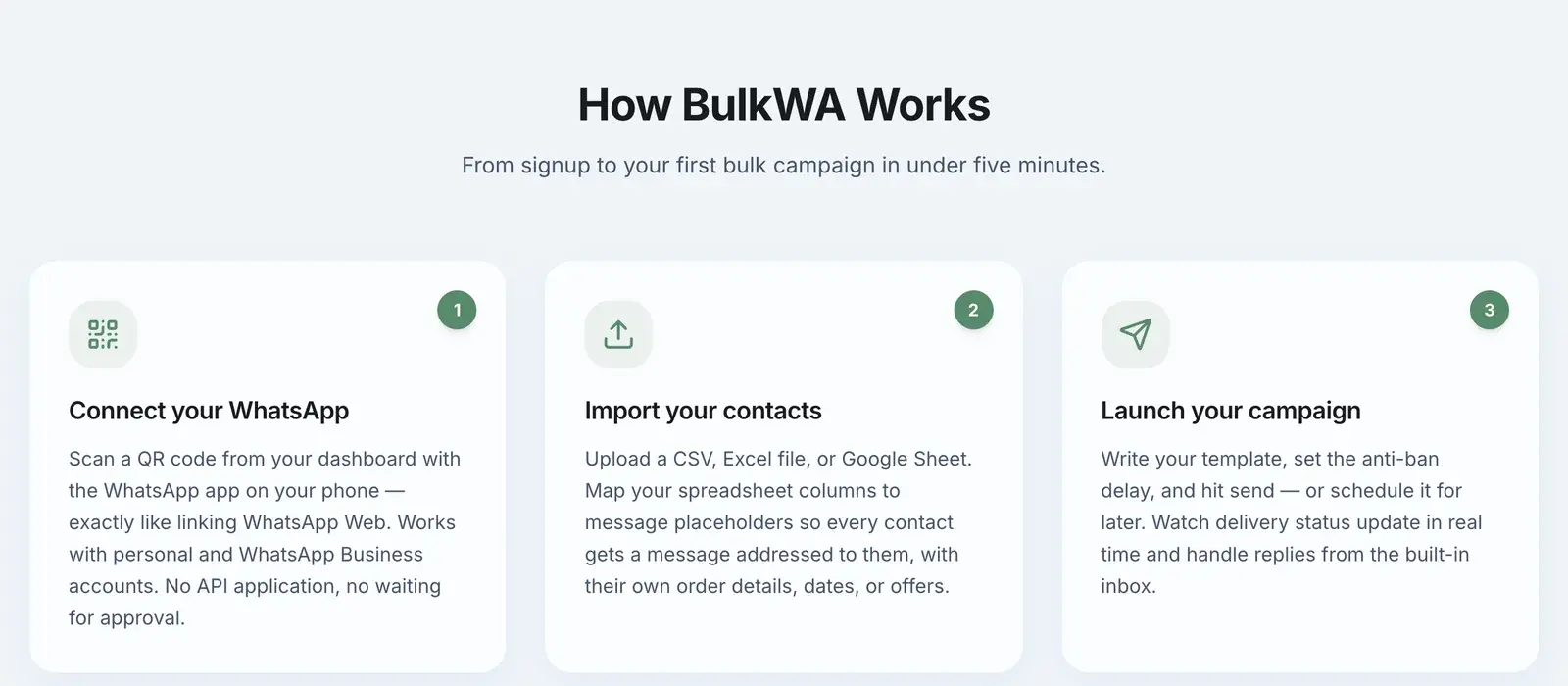
Every QR-based sender follows the same sequence, because it is WhatsApp's own linked-device mechanism rather than anything the tool invented:
- Open the tool's dashboard and go to its WhatsApp or Connect page. A QR code appears.
- On your phone, open WhatsApp, tap the menu (three dots on Android, Settings on iPhone), then Linked Devices, then Link a Device.
- Point the camera at the QR code. Your phone verifies the link and the dashboard flips to "connected".
That is the entire process. On BulkWA the connect page also shows the number that was paired and its live status, so you can tell at a glance whether the link is healthy.
Two things that are true of every honest QR-based tool:
- The tool never sees a password, because WhatsApp does not have one. Pairing creates a linked device, visible on your phone, removable any time.
- It works with a personal WhatsApp number and with a WhatsApp Business app number. The scan is identical.
What You Are Skipping
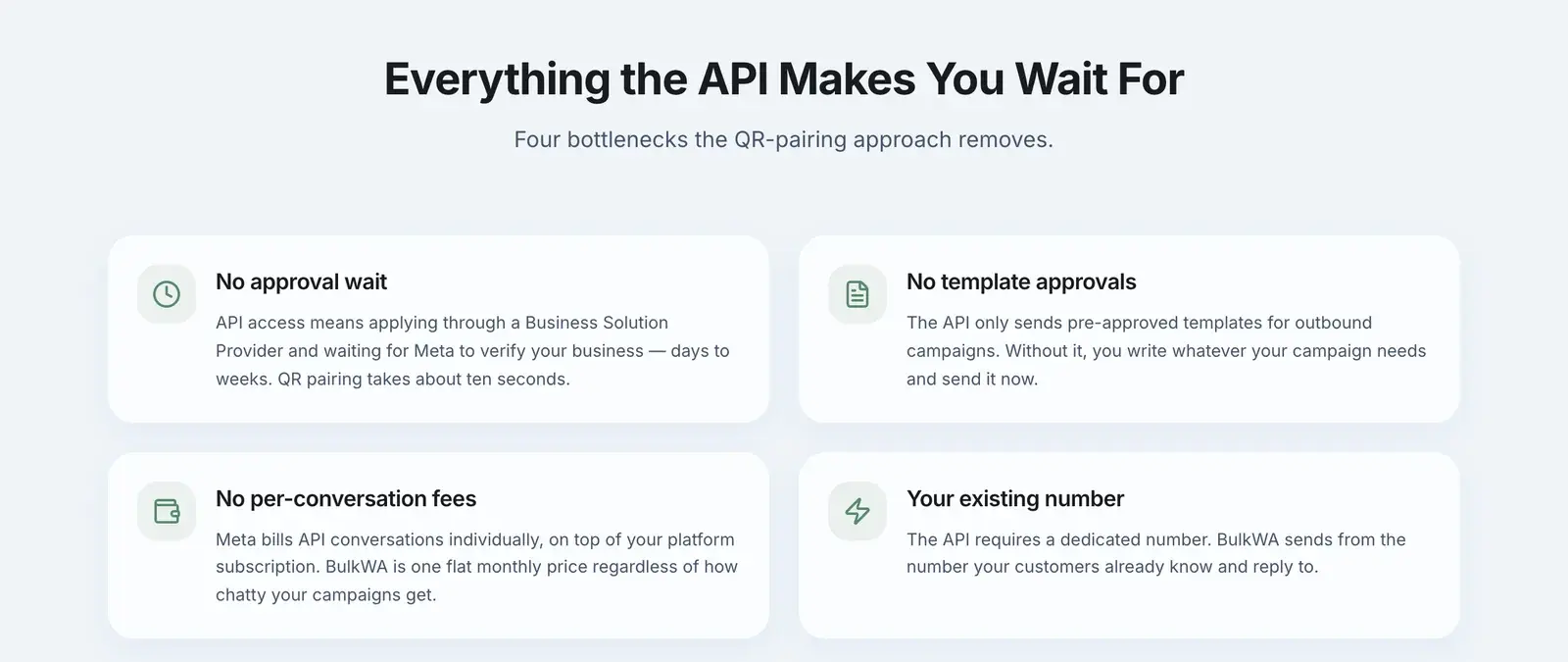
This is the part people find hard to believe until they have done it. The official WhatsApp Business API is built for large organisations and comes with a queue of prerequisites: applying through a Business Solution Provider, Meta business verification that takes days, a dedicated phone number that is not registered to any WhatsApp app, and pre-approval of every outbound message template.
QR pairing removes all four. You pair the number you have, write the message you want, and send it. There is no approval step because you are sending from your own account, the way a person would.
The honest counterpart is that you also do not get what the API gives: the green verified badge, official standing with Meta, and the assurance that sending approved volume will never get the number restricted. We cover the trade-off in full in our comparison of the Business app and the API; the short version is that the API is the right tool for enterprises and regulated industries, and QR pairing is the practical tool for a business messaging its own opted-in list.
Keeping the Link Alive
Pairing is easy. Staying paired over months is where tools differ.
Your phone needs internet, not attention. Linked devices keep working while the phone sits in a drawer, as long as it connects periodically. WhatsApp's own limit is roughly two weeks of the phone being completely offline before the link lapses.
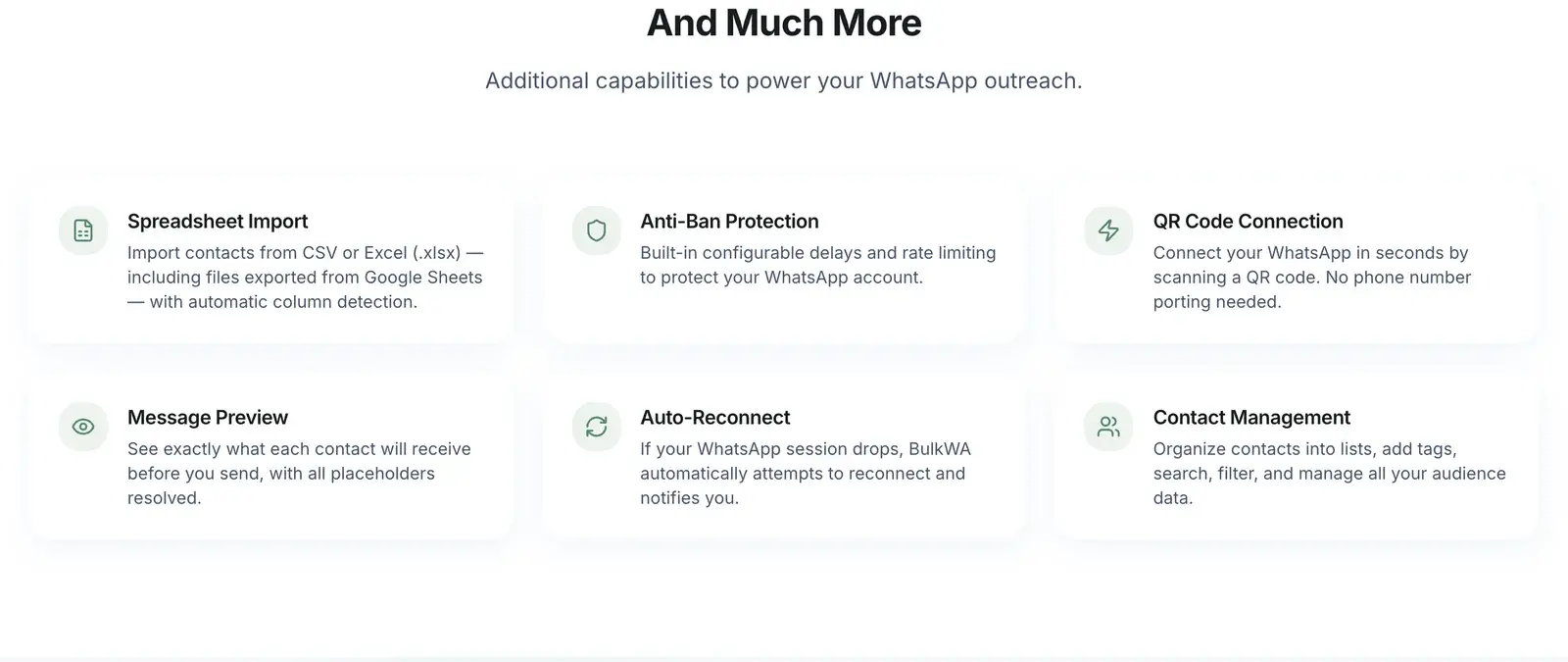
Sessions do drop. A phone restart, a WhatsApp update, a change of network, or WhatsApp itself rotating its protocol can interrupt the link. The question is what the tool does about it. BulkWA reconnects automatically when a session drops and notifies you if it cannot, so a queued campaign waits for the link rather than failing silently. If you are evaluating tools, ask specifically what happens to a running campaign when the session disconnects mid-send. The good answer is "it pauses and resumes"; the bad answer is a shrug.
Revoking is one tap. If you ever want to disconnect — switching tools, lending the phone, anything — go to Linked Devices on your phone and log the device out. The tool loses access instantly. You are always in control of the link, not the vendor.
Security: What to Insist On
A QR code is the correct, official way to link a device. There are two things that are not correct and should end the conversation with any tool:
Asking for your SMS verification code. That six-digit code is the key to registering your number on a new device. A tool that asks for it is not linking to your account; it is taking it. No legitimate bulk sender needs this.
Asking you to install an unknown desktop app or browser extension with broad permissions. Extensions that "automate WhatsApp Web" typically request permission to read all data on every page, which on WhatsApp Web means your messages and contacts.
A QR scan, shown in a normal web dashboard, revocable from your phone, is the standard. Anything else deserves suspicion.
Where BulkWA Fits
BulkWA is a QR-based sender, and the connection is exactly as described above: scan once from the dashboard, done. What we built around that link is what makes it usable for real campaigns rather than a demo:
- Auto-reconnect when a session drops, with a notification if reconnection fails
- Live connection status on the dashboard so a broken link is never a surprise
- Multi-number support on the Business plan — connect two numbers (add more at $9.99 each) and choose which one sends each campaign
- Number warm-up for freshly paired numbers, so a new connection does not start at full volume
The free plan includes one connected number and 50 messages a day, with no card required, which is enough to pair your number, send yourself a test, and see the whole flow before deciding anything.
The one thing we will not claim: that QR-based sending is officially sanctioned by WhatsApp. It is not, and the ban risk sits on your number. Pair a number you can afford to lose, send only to people who opted in, and the link will serve you for a long time.
Frequently Asked Questions
Do I need the WhatsApp Business API to connect a bulk sender?+
No. QR-based bulk senders such as BulkWA connect to the WhatsApp account you already have by scanning a QR code, the same way WhatsApp Web does. The official Business API is a separate route that requires a provider, business verification, a dedicated number and template approval — it is the right choice for enterprises but not a prerequisite for bulk sending.
Does connecting a bulk sender by QR code give it my password?+
No, and WhatsApp has no password to give. QR pairing registers the tool as a linked device on your account, exactly like a laptop running WhatsApp Web. You can see it under Linked Devices on your phone and remove it with one tap. Any tool that asks for your 6-digit SMS verification code instead of showing a QR code is attempting to take over the account and should be closed immediately.
Does my phone need to stay on for a QR-connected bulk sender?+
Your phone needs an internet connection but does not need to stay open or awake. Modern WhatsApp multi-device pairing keeps a linked device working for extended periods while the phone is idle, and the link typically survives for about 14 days without the phone coming online at all. A phone that is switched off for weeks will eventually cause the link to expire, at which point you scan the QR again.
Can I connect a WhatsApp Business app number, or only a personal one?+
Either. Both the regular WhatsApp app and the free WhatsApp Business app support linked devices, so a QR-based sender pairs with both. The only account type that cannot be paired this way is a number already migrated to the official Business API, because API numbers have no phone app to scan from.
Ready to Try BulkWA?
Send bulk WhatsApp messages with personalized templates. Free to start, no credit card required.
Get Started Free