Send WhatsApp Order & Shipping Updates Without the API
TL;DR
Export today's shipped orders from Shopify, WooCommerce or any store as a CSV with name, phone, order ID and tracking link. Import it into a bulk sender paired with your own WhatsApp number and send one personalised message per order. For a message the moment each order ships, call a REST API from a webhook instead.
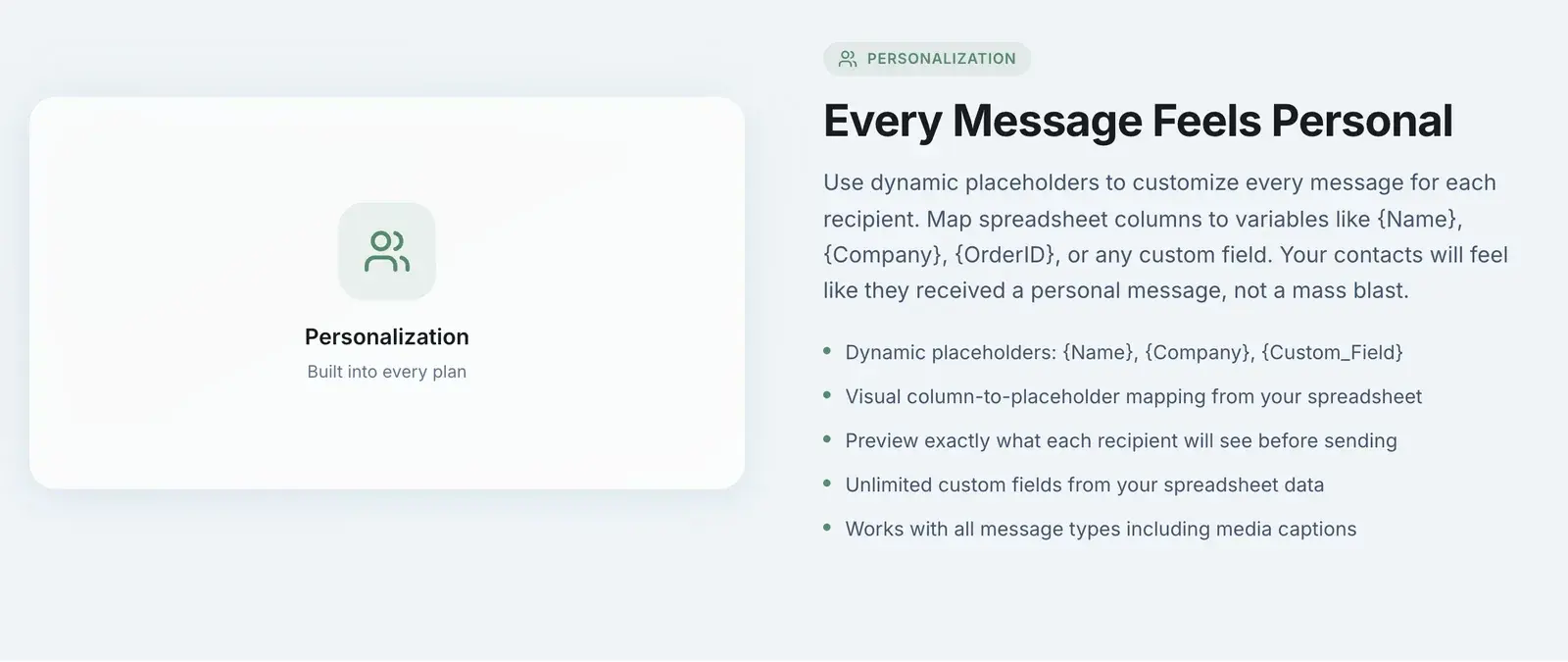
The shipping email lands in a promotions tab, and the customer messages you on WhatsApp anyway to ask where their parcel is. Sending the update on WhatsApp answers the question before it is asked.
You do not need the official WhatsApp Business API for this. You need your order data, a number your customers recognise, and one of two routes: a daily batch from a spreadsheet, or one message per order sent by your own code. For the wider picture, including abandoned carts and sales, see WhatsApp for online stores.
Which Route Fits Your Store?
- Route A, daily batch. Export the orders that shipped today, import the file and send each customer one personalised message. Works on every plan, needs no code.
- Route B, per order. Your store or an automation tool calls BulkWA's REST API each time an order ships. Needs the Business plan and someone who can wire up an HTTP request.
BulkWA has no Shopify or WooCommerce plugin. Route A uses the CSV export every platform already has; Route B uses your own code, or an automation tool that can make HTTP requests. Stores with one courier pickup a day rarely need more than Route A.
Route A, Step 1: Export Today's Shipped Orders
Filter your orders to those fulfilled today and export them as CSV from the orders screen of Shopify, WooCommerce or your platform. You want one row per order:
| Column | Example | Used as |
|---|---|---|
| Name | Maria | {Name} |
| Phone | 447911123456 | the recipient |
| OrderID | 10482 | {OrderID} |
| TrackingLink | track.example.com/AB123 | {TrackingLink} |
| Carrier | Royal Mail | {Carrier} |
| DeliveryDate | Thursday 6 November | {DeliveryDate} |
If the order export lacks tracking links, your shipping app or carrier portal usually exports them; join the two files on order ID with a lookup in Excel or Google Sheets. Name the headers after the placeholders you want, because in BulkWA any column becomes a placeholder with the same name.
Route A, Step 2: Fix the Phone Column Before You Import
Checkout phone fields accept almost anything, so three problems turn up in nearly every export:
- Missing country code. A UK customer types 07911 123456. WhatsApp needs 447911123456: the country code, then the number without its leading zero.
- Stripped leading zeros. Excel turns 07911123456 into 7911123456. Set the column to Text before editing.
- Scientific notation. Excel shows long numbers as 4.47911E+11; save the file like that and the real digits are gone. Format it as Text too.
The free WhatsApp number list cleaner converts a list to international format and removes duplicates in your browser, and our CSV import guide covers the file format. A wrong number is not just a failed send; it can be a stranger receiving someone else's order details.
Route A, Step 3: Write the Message and Map the Placeholders
Start from the "Order shipped" message in our free message templates. Its gist: greet the customer by {Name}, say order #{OrderID} is on its way, give the {TrackingLink}, and close with the expected {DeliveryDate}. Adapt the tone, but keep it to what the customer needs:
"Hi {Name}, your order #{OrderID} has shipped with {Carrier}. Track it here: {TrackingLink}. Expected delivery: {DeliveryDate}. Questions? Just reply to this message."
Check the preview for a few rows before sending. An empty TrackingLink cell produces a message that promises a link and gives none, so hold back those rows. Send any order confirmation as a separate, shorter message, and keep discount codes out of both. More examples in how to personalize bulk WhatsApp messages.
Route A, Step 4: Send Now or Schedule the Batch
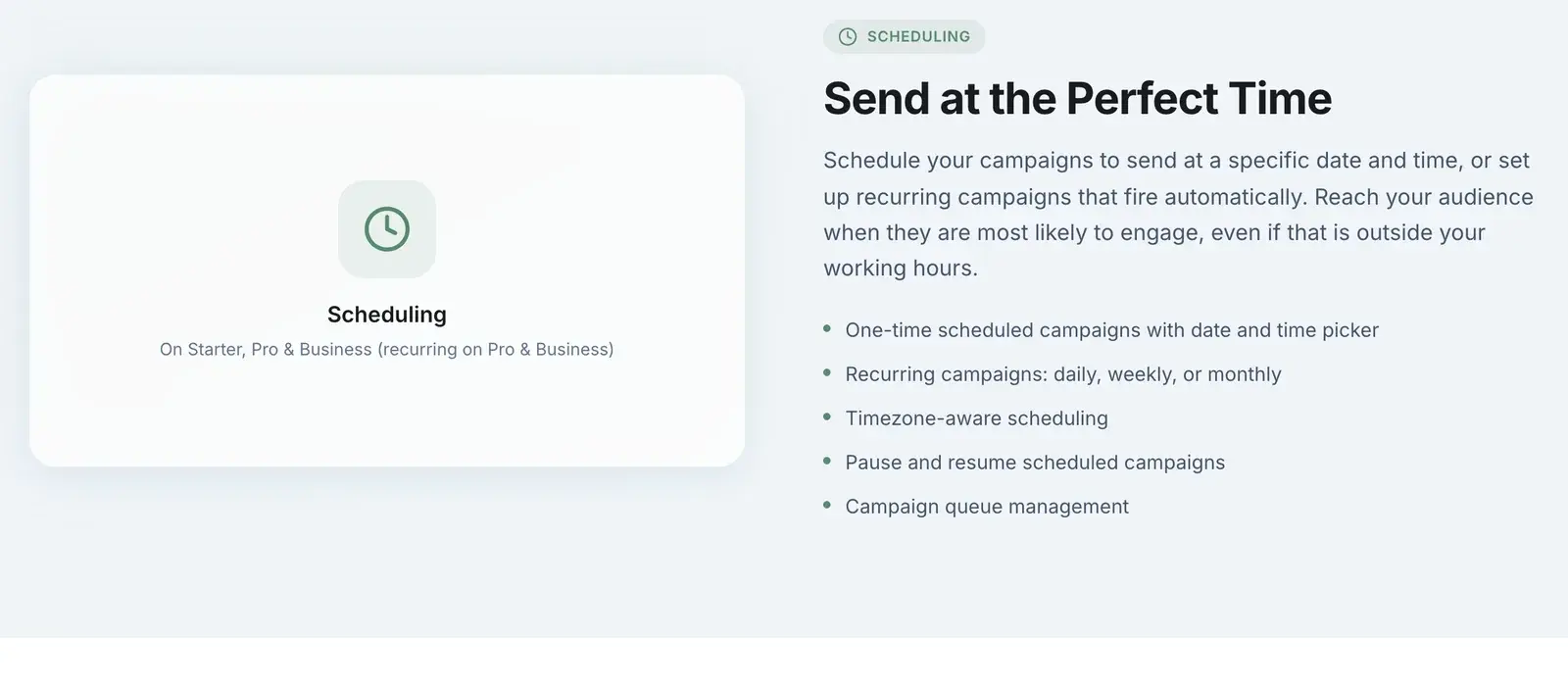
With the default random 8–20 second gap, the average is about 14 seconds per message, so 120 shipped orders take roughly 28 minutes to go out. That is fine for a batch sent after the afternoon pickup.
Scheduling, on Starter and above, sends the batch at a fixed hour, such as 5 pm. On the Free plan you send by hand, up to 50 messages a day, and each campaign message carries a short "Sent via BulkWA" note.
Route B: Send One Message per Order with the API
If you ship all day, the Business plan includes a REST API. Your store's order-fulfilled webhook, your backend, or an automation tool that can make HTTP requests calls one endpoint per order:
curl -X POST https://bulkwa-server.onrender.com/v1/messages \
  -H "Authorization: Bearer bwa_live_xxx" \
  -H "Content-Type: application/json" \
  -d '{
    "to": "+447911123456",
    "message": "Hi Maria, your order #10482 has shipped. Track it: https://track.example.com/AB123"
  }'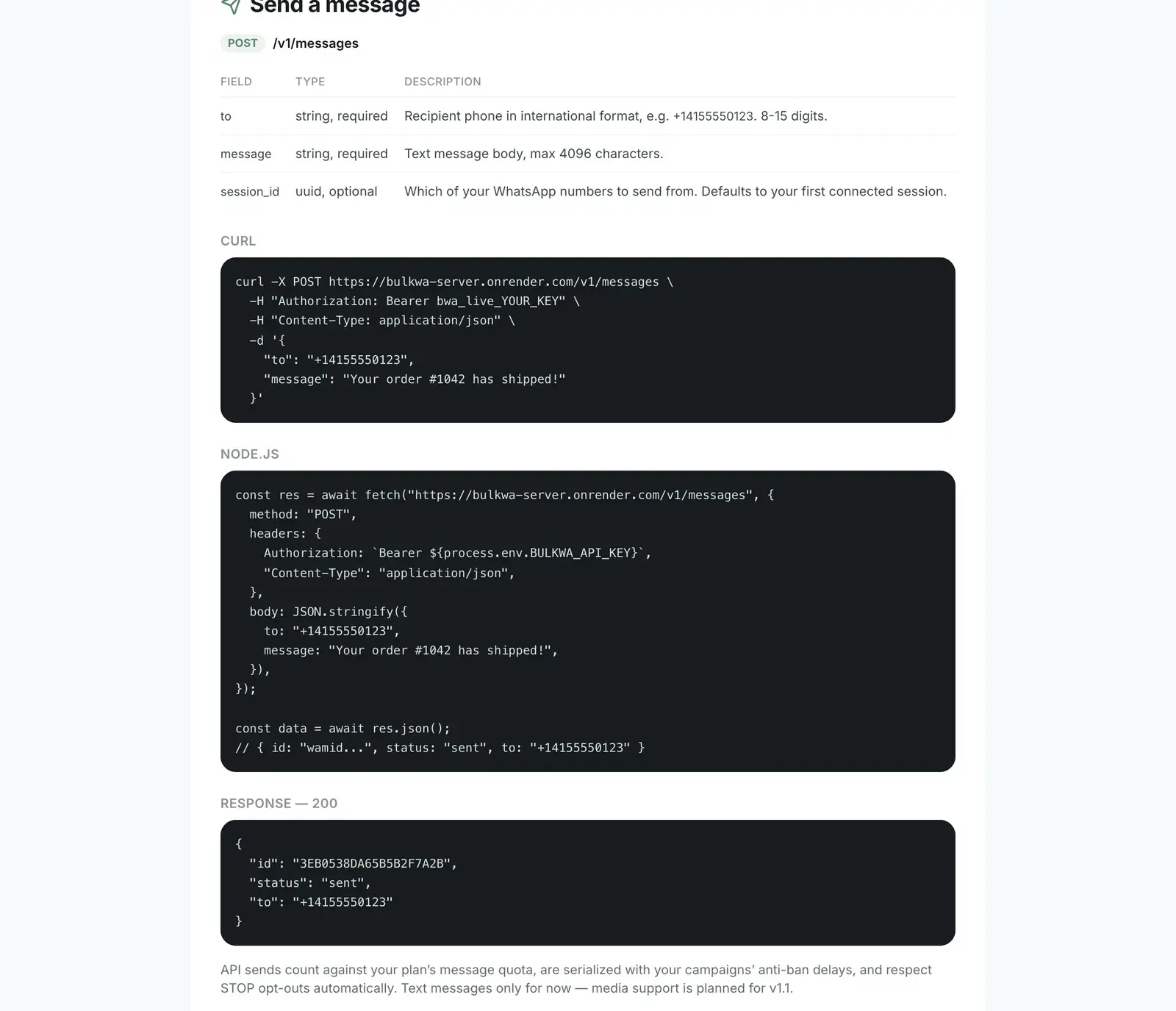
The essentials from the API documentation:
- Auth: a Bearer key starting bwa_live_, created in the dashboard and kept server-side.
- Body: to, in international format with 8 to 15 digits; message, plain text up to 4,096 characters; optional session_id to pick which of your two numbers sends it. Text only for now.
- Limits: 60 requests per minute per account, and every send counts against the same 10,000-message monthly quota as your campaigns.
- Opt-outs: a customer who replied STOP is refused with recipient_opted_out (HTTP 422). Do not retry.
- Errors: 409 session_not_connected means reconnect the phone; 502 send_failed is safe to retry; 429 means rate limit or quota.
What Does "Real Time" Actually Mean Here?
Not instant. The server spaces sends on a number a random 8–20 seconds apart, the same gap campaigns use, and the request returns once its message has gone out. A request waits up to 20 seconds for its slot; if the backlog is longer, it gets a 429 "paced" response with a Retry-After header and nothing is sent. So when a courier batch of 40 orders is marked shipped, queue the events on your side and retry anything refused with 429.
At a 14-second average gap, one number sends about 257 messages an hour (3,600 seconds divided by 14). A store shipping 100 orders an hour uses under 40% of that. If 30 orders are fulfilled at once, the last customer hears about 7 minutes later (30 × 14 seconds). Real time means within minutes. For a first integration, see how to send WhatsApp messages from your own software.
How Many Orders Can Each Plan Handle?
The table assumes two messages per order, a confirmation and a shipping update.
| Orders per month | Messages per month | Route | Plan |
|---|---|---|---|
| 40 | 80, about 3 a day | A, sent by hand | Free, 50 a day, with a "Sent via BulkWA" note |
| 300 | 600 | A, scheduled daily | Starter, $9/mo for 1,000 |
| 1,500 | 3,000 | A, scheduled daily | Pro, $29.99/mo for 5,000 |
| 2,400 | 4,800 | A, scheduled daily | Pro, $29.99/mo for 5,000 |
| 3,000 | 6,000 | A or B | Business, $99/mo for 10,000 |
| Any volume, sent as each order ships | 2 per order, up to 5,000 orders | B, API | Business, $99/mo or $79/mo annual |
Send only the shipping update and every figure halves: Starter covers 1,000 orders a month, Business 10,000.
What Are the Risks of Sending Order Updates This Way?
- The connection is unofficial. BulkWA pairs with your number the way WhatsApp Web does. No Meta approval or per-message fee, but the restriction risk sits on your number.
- #171c1f] font-semibold">Opt-in still matters. Order updates are expected only when the customer gave their WhatsApp number for that purpose. Add an unticked "Send me order updates on WhatsApp" box at checkout; promotions are a separate permission. See [building an opt-in list.
- Pacing. Random 8–20 second gaps on batches and API calls alike.
- Warm-up. Ramp a new number from about 20–30 messages a day in week one to 200–500 by week four.
- Personalization. Order updates are naturally unique; do not cut them to one generic line.
- STOP. Honour it even on order updates. BulkWA records STOP replies, skips those numbers in campaigns, and the API refuses them.
The full checklist is in our anti-ban rules.
Where BulkWA Fits
BulkWA suits a store that wants order and shipping updates on WhatsApp from its own number, without Meta verification or per-message fees: a daily CSV batch on any plan, or per-order sends through the REST API on Business. It is not a Shopify app, and it is the wrong choice if you need the official API's verified standing. Compare plans on pricing, look through the features, or create a free account and send tomorrow's shipped orders as your first batch.
Frequently Asked Questions
Can I send WhatsApp order updates without the WhatsApp Business API?+
Yes. A bulk sender such as BulkWA pairs with your own WhatsApp number by QR code, like WhatsApp Web, so you can send order and shipping updates from a spreadsheet or through a simple REST API with no Meta verification or template approval. The trade-off is that the connection is unofficial: the risk of a restriction sits on your number, so pace your sends and only message customers who opted in.
Does BulkWA integrate with Shopify or WooCommerce?+
Not with a plugin. For daily batches, export the shipped orders as a CSV from Shopify, WooCommerce or any other platform and import the file. For a message per order, your developer or an automation tool that can make HTTP requests calls BulkWA's REST API, included in the Business plan, when an order is fulfilled. API sends use the same monthly quota and STOP handling as campaigns.
What should a WhatsApp order confirmation message say?+
The customer's name, the order number, what happens next and how to get help. For example: "Hi Maria, thanks for your order #10482. We'll message you here with tracking as soon as it ships. Questions? Just reply." Keep it short, leave out discount codes and promotions, and send the shipping update, with the tracking link and expected delivery date, as a separate message.
How fast are WhatsApp order notifications sent through the API?+
Within minutes, not instantly. The server spaces sends on one WhatsApp number a random 8–20 seconds apart, so your queue only needs to retry requests refused with a 429. At a 14-second average, one number handles about 257 messages an hour, so 100 orders an hour fits comfortably. If 30 orders ship at once, the last customer's message goes out roughly 7 minutes after the first.
Why do some WhatsApp order messages fail to send?+
Usually the phone number. Checkout fields collect local formats without a country code, Excel strips leading zeros, and long numbers saved as 4.47911E+11 lose their real digits. Clean the phone column into international format before importing. Through the API, also watch for recipient_opted_out, which means the customer replied STOP, and session_not_connected, which means your phone needs reconnecting.
Ready to Try BulkWA?
Send bulk WhatsApp messages with personalized templates. Free to start, no credit card required.
Get Started Free